Showing posts with label Iphone. Show all posts

Saturday, 20 August 2011

iFaith (The SHSH Dumper) Updated v1.3.2

when your device comes from Apple, it comes with a firmware pre-installed. If Apple is no longer signing that firmware, you wouldn't be able to save the SHSH blobs in the past. With ih8sn0ws new tool, you can dump the SHSH blob directly from your currently installed firmware. The way this works is that Apple has signed image files that show up during the boot sequence with the SHSH blob. iFaith allows you to dump your SHSH key directly from those files.

After you have dumped the files, you then patch the firmware file you are trying to downgrade to with your SHSH key, this firmware file is considered a signed firmware file. Once you have created it, you simply restore it in Pwned-DFU mode just like you would if you were restoring any other custom firmware. iFaith is compatible with mostly all iDevices except for the iPad2 and a few others.

Download iFaith-v1.3.2

These are instructions on how to dump the SHSH of your current firmware even if Apple is not signing.

For instance, you can dump the SHSH of the current firmware on your device, so long as the device is susceptible to the Limera1n jailbreak (Everything but the iPad 2) Apple does not have to be signing the SHSH in order for you to dump the blob.

*Note the iPod Touch 2G and iPhone 3G will not work since they will always be jailbreakable. The iPad 2 will not work because it is not susceptible to Limera1n. A jailbreak is not needed for this.

iFaith v1.2.1 Release Notes:
* Added iPod Touch 2G Dumping capability (MC-Model users recommened)
* IPSW Creation for iPod Touch 2G is still a work in progress.
* Fixed exe compression issues (resulting in many DFU loops on IPSW creation).
* Fixed any Windows XP issues.
* Source code coming soon to a github near you!

iFaith v1.3 Release Notes:
* DFU Loops were being caused on devices that had the factory certificate.
On this new version. When building the signed IPSW. If you were getting
a DFU loop, say "NO" to the prompt about using the standard
signing certificate.
* You can now use TinyUmbrella blobs to build a signed IPSW.
[Change Filetype in browse dialog to "TinyUmbrella SHSH blobs".]
* Now adds ECID to beginning of the SHSH filename after dumping.
* Now adds ECID to beginning of the IPSW filename after being built.
* Cleaned up code + payload.


Step One
Extract the downloaded rar file, and double click the iFaith.exe file.


Step Two
A disclaimer will appear. Read the notice and click ok to proceed.

Step Three
Click the Dump SHSH Blobs button


Step Four

Read the information and click Proceed when you are ready.


Finally, click the Let's Go! button to start the dumping process


Step Five
If you are dumping an Apple TV 2, indicate it when iFaith asks you

Step Six
Follow the DFU Instructions to place your device in DFU Mode. You can find more on entering DFU mode here.


Press Power and home for 10 Seconds


Release the power button, but keep holding the Home


Once Successful, iFaith will dump the SHSH of your current firmware. It will go through each step which could take a few minutes.


Step Seven
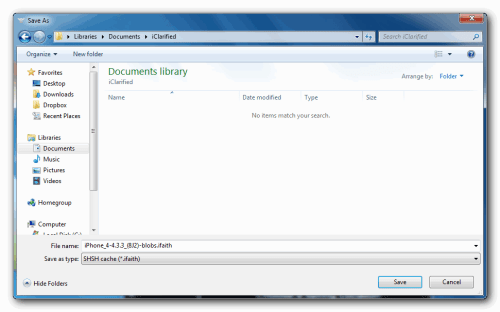
When completed, iFaith will ask you where to locally save the SHSH.


Indicate where you want to save the SHSH file.


Step Eight
iFaith will notify you that the process was successful

Apple iphone 3GS unlock 4.3.3 procedure in 10 easy steps

Apple iphone 3GS unlock 4.3.3 procedure in 10 easy steps

Step 1: go to settings->General look for firmware version and baseband version
Step 2: download and open Redsnow latest version
Step 3: Now select firmware version to Unlock press next
step 4: Select the options required(Recomend install Cydia mandatory and check baseband if necessary)
step 5: follow the instructions on the redsnow to enter jailbreak(this mode is also called Device Firware DFU mode).
Step6: Jailbreak happens on your device once finished click finished.
Step 7: Now you can see that Cydia is installed on your iphone
Step 8: Enter cydia(Wi-fi connected) browse to Manage
Step 9: browse to ultrasnow and install or upgrade
Step 10: Now restart your iphone and you can see ur iphone is Unlocked

iPad Firmwares Downloads

ad Firmwares Downloads


Here you can get latest iPad Firmwares To Restore your iPad Or to Update it To latest Version


JailBreak All iOS Devices
By RedSn0w


iPad Firmwares
-------------------------------------------------------------------------------------------------------------------------------------


iPad 2 Firmwares
4.3 - 4.3.1 - 4.3.2 - 4.3.3 - 4.3.4 - 4.3.5 New
--------------------------------------------------------------------------------------------------------------------------------------
iPad 2 WI-FI
4.3 - 4.3.3 - 4.3.4 - 4.3.5

How to Downgrade 4.3.5 to 4.3.3, 4.3.2, 4.3.1 - iPhone 4G without SHSH Tested

How to Downgrade 4.3.5 to 4.3.3, 4.3.2, 4.3.1 - iPhone 4G without SHSH Tested
Tested
4.3.5 to 4.3.3


create CUSTOM firmware with sn0wbreeze-v2.7.3 4.3.3


use this host file

** Copyright (c) 1993-1999 Microsoft Corp.
**
** This is a sample HOSTS file used by Microsoft TCP/IP for Windows.
**
** This file contains the mappings of IP ad******* to host names. Each
** entry should be kept on an individual line. The IP address should
** be placed in the first column followed by the corresponding host name.
** The IP address and the host name should be separated by at least one
** space.
**
** Additionally, comments (such as these) may be inserted on individual
** lines or following the machine name denoted by a '**' symbol.
**
** For example:
**
** 102.54.94.97 rhino.acme.com ** source server
** 38.25.63.10 x.acme.com ** x client host

127.0.0.1 localhost
74.208.105.171 gs.apple.com

no need to open tinyumbrella

How to Downgrade 3Gs from 4.3.5 to 4.3.3 for repair No service

How to Downgrade 3Gs from 4.3.5 to 4.3.3 for repair No service

For downgrade 3Gs from 4.3.5 to 4.3.3 we need to …………..

Download
1- 3Gs 4.3.3 firmware from Here
2- Ireb4 from Here
3- Tiny Umbrella from Here
4- Snow Breeze 2.7 from Here
Now after download all Follow these step,s
1- Run Tiny software and connect Tethered jailbreak 3gs on ver 4.3.5 and save SHSH files, software should save shsh files for 4.3.5, 4.3.4, 4.3.3, 4.1 ver.
2- Now run Snow breeze and select 4.3.3 firmware and make custom restore firmware for 3Gs ver 4.3.3.it should paced on your computer desktop.
3- Now run IREB4 software and select iphone 3Gs and follow software instruction,s in the end your phone in DFU mode.
4- Run itunes software and Tiny umbrella software and start TSS server on Tiny Umbrella, your Itune should close automatically, that mean TSS server is working now.
5- Run ITUNES software again and restore your 3GS whith SHIFT+Restore 4.3.3 Firmware ver.
6- Itune take some time and your phone should restore to 4.3.3 downgrade ver from 4.3.5 ver.
7- Due to Custome restore file your phone complete on in Jailbreak condition.
8- Now run Cydia whith wifi and install repo666 application for signal repair.
That,s it now your phone in Untethered jailbreak condition whith full signal.

Cyder Cydia in PC >Ultrasn0w,SSH,Apps,Games,Theme Without Wifi

Cyder 2


Download Via Rapidshare
Download Via Mediafire

Cyder Tutorial


Download Cyder

Password >>> malikkk

For Ultrasn0w

Connect Iphone With Itune
Open Cyder
Just Copy
mobilesubstrate.deb
ultrasn0w0.9.3.deb

From Local Cache TO Autoinstall Folder
Restart Phone
done


For Ssh

Connect Iphone With Itune
Open Cyder
Just Copy

autossh.deb
openssh.deb
openssl.deb

From Local Cache TO Autoinstall Folder
Restart Phone
done


For Applications ,Games,Themes

Just Refresh Repo
Downlaod .deb
Transfer From Local Cache To Autoinstall Folder
Restart Done


VIDEO TUTORIAL

Iphone 46 Themes pack

Iphone 46 Themes pack.

Download

updater's can jailbreak ios5b6 with Redsn0w 0.9.8b5


Yes you read that correct

IOS 5 beta6 can be jailbroken using redsn0w 0.9.8b5

To jailbreak follow these steps !

1) Clean install of IOS 5 beta 5 (Don't jailbreak)

2) OTA update to beta 6

3) After its updated to Beta 6 Run redsn0w 0.9.8b5 (Download Link given in the end) point to IOS 5 beta 5 firmware and Select Install Cydia

4) Now Boot tethered and finally your iphone will be jailbroken!!

NOTE :
(Must read before doing anything)

1. If you update to ios 5 beta 6 using itunes then its not possible to jailbreak IOS 5 beta 6 with Redsn0w 0.9.8b5 you need to wait till Redsn0w 0.9.8b6 is out (You have been warned)

2. Do it at your own risk it is tested by me and many others and is working flawlessly !@


Supports the following Devices:

- iPhone 3GS
- iPhone 4 [GSM]
- iPhone 4 [CDMA]
- iPod Touch 3G
- iPod Touch 4
- iPad 1G

THIS IS INTENDED FOR DEVELOPERS ONLY!!!
* UNLOCKERS SHOULD STAY AWAY!!!
* This is only a TETHERED jailbreak !!!.

You can download redsn0w from here:
RedSn0w 0.9.8b5 (Mac): redsn0w_mac_0.9.8b5.zip
RedSn0w 0.9.8b5 (Windows): redsn0w_win_0.9.8b5.zip

Download IOS 5 Beta 6

Download Official Apple iOS Firmware+Few Jailbreak Software's [AIO]

Apple's Stuff


Apple's Official iTunes
(we recommend you to use new iTunes)
iTunes:iTunes is a proprietary media player computer program, used for playing and organizing digital music and video files on desktop computers. It can also manage contents on iPod, iPhone and iPad.

iTunes can connect to the iTunes Store to purchase and download music, music videos, television shows, iPod games, audiobooks, podcasts, movies and movie rentals (not available in all countries), and ringtones (only available on iPhone and iPod Touch 4th Generation). It is also used to download application software from the App Store for the iPhone, iPad and iPod Touch. iTunes has been criticized for not being able to transfer music from one portable device to another.


Please note that if you use Safari you must disable the auto unzip feature. It may be easier to just use Firefox!
Apple's Official Iphone Firmware's

1.0.0: iPhone1,1_1.0_1A543a_Restore.ipsw
1.0.1: iPhone1,1_1.0.1_1C25_Restore.ipsw
1.0.2: iPhone1,1_1.0.2_1C28_Restore.ipsw
1.1.1: iPhone1,1_1.1.1_3A109a_Restore.ipsw
1.1.2: iPhone1,1_1.1.2_3B48b_Restore.ipsw
1.1.3: iPhone1,1_1.1.3_4A93_Restore.ipsw
1.1.4: iPhone1,1_1.1.4_4A102_Restore.ipsw
2.0.0 (2G): iPhone1,1_2.0_5A347_Restore.ipsw
2.0.0 (3G): iPhone1,2_2.0_5A347_Restore.ipsw
2.0.1 (2G): iPhone1,1_2.0.1_5B108_Restore.ipsw
2.0.1 (3G): iPhone1,2_2.0.1_5B108_Restore.ipsw
2.0.2 (2G): iPhone1,1_2.0.2_5C1_Restore.ipsw
2.0.2 (3G): iPhone1,2_2.0.2_5C1_Restore.ipsw
2.1.0 (2G): iPhone1,1_2.1_5F136_Restore.ipsw
2.1.0 (3G): iPhone1,2_2.1_5F136_Restore.ipsw
2.2.0 (2G): iPhone1,1_2.2_5G77_Restore.ipsw
2.2.0 (3G): iPhone1,2_2.2_5G77_Restore.ipsw
2.2.1 (2G): iPhone1,1_2.2.1_5H1_Restore.ipsw
2.2.1 (3G): iPhone1,2_2.2.1_5H11_Restore.ipsw
3.0.0 (2G): iPhone1,1_3.0_7A341_Restore.ipsw
3.0.0 (3G): iPhone1,2_3.0_7A341_Restore.ipsw
3.0.0 (3GS): iPhone2,1_3.0_7A341_Restore.ipsw
3.0.1 (2G): iPhone1,1_3.0.1_7A400_Restore.ipsw
3.0.1 (3G): iPhone1,2_3.0.1_7A400_Restore.ipsw
3.0.1 (3GS): iPhone2,1_3.0.1_7A400_Restore.ipsw
3.1.0 (2G): iPhone1,1_3.1_7C144_Restore.ipsw
3.1.0 (3G): iPhone1,2_3.1_7C144_Restore.ipsw
3.1.0 (3GS): iPhone2,1_3.1_7C144_Restore.ipsw
3.1.2 (2G): iPhone1,1_3.1.2_7D11_Restore.ipsw
3.1.2 (3G): iPhone1,2_3.1.2_7D11_Restore.ipsw
3.1.2 (3GS): iPhone2,1_3.1.2_7D11_Restore.ipsw
3.1.3 (2G): iPhone1,1_3.1.3_7E18_Restore.ipsw
3.1.3 (3G): iPhone1,2_3.1.3_7E18_Restore.ipsw
3.1.3 (3GS): iPhone2,1_3.1.3_7E18_Restore.ipsw
4.0.0 (3G): iPhone1,2_4.0_8A293_Restore.ipsw
4.0.0 (3GS): iPhone2,1_4.0_8A293_Restore.ipsw
4.0.0 (4): iPhone3,1_4.0_8A293_Restore.ipsw
4.0.1 (3G): iPhone1,2_4.0.1_8A306_Restore.ipsw
4.0.1 (3GS): iPhone2,1_4.0.1_8A306_Restore.ipsw
4.0.1 (4): iPhone3,1_4.0.1_8A306_Restore.ipsw
4.0.2 (3G): iPhone1,2_4.0.2_8A400_Restore.ipsw
4.0.2 (3GS): iPhone2,1_4.0.2_8A400_Restore.ipsw
4.0.2 (4): iPhone3,1_4.0.2_8A400_Restore.ipsw
4.1.0 (3G): iPhone1,2_4.1_8B117_Restore.ipsw
4.1.0 (3GS): iPhone2,1_4.1_8B117_Restore.ipsw
4.1.0 (4): iPhone3,1_4.1_8B117_Restore.ipsw
4.2.1 (3G): iPhone1,2_4.2.1_8C148_Restore.ipsw
4.2.1 (3GS): iPhone2,1_4.2.1_8C148a_Restore.ipsw
4.2.1 (4): iPhone3,1_4.2.1_8C148_Restore.ipsw
4.2.6 (4 CDMA): iPhone3,3_4.2.10_8E600_Restore.ipsw
4.3.0 (3GS): iPhone2,1_4.3_8F190_Restore.ipsw
4.3.0 (4 GSM): iPhone3,1_4.3_8F190_Restore.ipsw
4.3.1 (3GS): iPhone2,1_4.3.1_8G4_Restore.ipsw
4.3.1 (4 GSM): iPhone3,1_4.3.1_8G4_Restore.ipsw
4.3.2 (3GS): iPhone2,1_4.3.2_8H7_Restore.ipsw
4.3.2 (4 GSM): iPhone3,1_4.3.2_8H7_Restore.ipsw
4.2.7 (4 CDMA): iPhone3,3_4.2.7_8E303_Restore.ipsw
4.2.8 (4 CDMA): iPhone3,3_4.2.8_8E401_Restore.ipsw
4.3.3 (3GS): iPhone2,1_4.3.3_8J2_Restore.ipsw
4.3.3 (4 GSM): iPhone3,1_4.3.3_8J2_Restore.ipsw
4.2.9 (4 CDMA): iPhone3,3_4.2.9_8E501_Restore.ipsw
4.3.4 (3GS): iPhone2,1_4.3.4_8K2_Restore.ipsw
4.3.4 (4 GSM): iPhone3,1_4.3.4_8K2_Restore.ipsw
4.2.10 (4 CDMA): iPhone3,3_4.2.10_8E600_Restore.ipsw
4.3.5 (3GS): iPhone2,1_4.3.5_8L1_Restore.ipsw
4.3.5 (4 GSM): iPhone3,1_4.3.5_8L1_Restore.ipsw


Apple's Official Ipod Firmware's

1.1: iPod1,1_1.1_3A101a_Restore.ipsw
1.1.1: iPod1,1_1.1.1_3A110a_Restore.ipsw
1.1.2: iPod1,1_1.1.2_3B48b_Restore.ipsw
1.1.3: iPod1,1_1.1.3_4A93_Restore.ipsw
1.1.4: iPod1,1_1.1.4_4A102_Restore.ipsw
1.1.5: iPod1,1_1.1.5_4B1_Restore.ipsw
2.0.0: iPod1,1_2.0_5A347_Restore.ipsw (Must purchase through iTunes)
2.0.1: iPod1,1_2.0.1_5B108_Restore.ipsw
2.2.0 (1G): iPod1,1_2.2_5G77_Restore.ipsw
2.2.0 (2G): iPod2,1_2.2_5G77a_Restore.ipsw
2.2.1 (2G): iPod2,1_2.2.1_5H11a_Restore.ipsw
3.1.2 (3G): iPod3,1_3.1.2_7D11_Restore.ipsw
3.1.3 (3G): iPod3,1_3.1.3_7E18_Restore.ipsw
4.0.0 (2G): iPod2,1_4.0_8A293_Restore.ipsw
4.0.0 (3G): iPod3,1_4.0_8A293_Restore.ipsw
4.0.2 (2G): iPod2,1_4.0.2_8A400_Restore.ipsw
4.0.2 (3G): iPod3,1_4.0.2_8A400_Restore.ipsw
4.1.0 (2G): iPod2,1_4.1_8B117_Restore.ipsw
4.1.0 (3G): iPod3,1_4.1_8B117_Restore.ipsw
4.1.0 (4G): iPod4,1_4.1_8B117_Restore.ipsw
4.2.1 (2G): iPod2,1_4.2.1_8C148_Restore.ipsw
4.2.1 (3G): iPod3,1_4.2.1_8C148_Restore.ipsw
4.2.1 (4G): iPod4,1_4.2.1_8C148_Restore.ipsw
4.3.0 (3G): iPod3,1_4.3_8F190_Restore.ipsw
4.3.0 (4G): iPod4,1_4.3_8F190_Restore.ipsw
4.3.1 (3G): iPod3,1_4.3.1_8G4_Restore.ipsw
4.3.1 (4G): iPod4,1_4.3.1_8G4_Restore.ipsw
4.3.2 (3G): iPod3,1_4.3.2_8H7_Restore.ipsw
4.3.2 (4G): iPod4,1_4.3.2_8H7_Restore.ipsw
4.3.3 (3G): iPod3,1_4.3.3_8J2_Restore.ipsw
4.3.3 (4G): iPod4,1_4.3.3_8J2_Restore.ipsw
4.3.4 (3G): iPod3,1_4.3.4_8K2_Restore.ipsw
4.3.4 (4G): iPod4,1_4.3.4_8K2_Restore.ipsw
4.3.5 (3G): iPod3,1_4.3.5_8L1_Restore.ipsw
4.3.5 (4G): iPod4,1_4.3.5_8L1_Restore.ipsw


Dev-Team
Redsn0w's By Iphone.dev-Team
redsn0w is a utility to jailbreak iOS devices. It does so by reading the stock firmware that can be downloaded from iTunes or from various locations on the internet (as iTunes will detect and delete old firmwares), and then running a payload directly on the device in the form of a ramdisk. When jailbreaking, the device will also enter into Device Firmware Upgrade mode. It allows users to install Cydia, the popular 3rd party app installer. This allows the user access to tweaks, homebrew applications, the root directory and the file system.

Redsn0w 0.9.8 For Jailbreak iOS 5.0 beta5 Tethered (Mac & Win)


.
Redsn0w 0.9.8 For Jailbreak iOS 5.0 beta4 & iOS 4.3.5 Tethered (Mac & Win)


.
Redsn0w 0.9.8 For Jailbreak iOS 5.0 beta Tethered (Mac & Win)


.
Redsn0w 0.9.6rc For Jailbreak iOS 4.3.3 (Mac & Win)


.
Redsn0w 0.9.6rc For Jailbreak iOS 4.3.2 (Mac & Win)


.
Redsn0w 0.9.6rc For Jailbreak iOS 4.3.1 (Mac & Win)


.
Redsn0w 0.9.7 For Jailbreak iOS 4.2.1 (Only for Mac OS)


.
Redsn0w 0.9.6 For Jailbreak iOS 4.1 (Mac & Win)


.
Redsn0w 0.9.5 For Jailbreak iOS 4.0 (Mac & Win)


.
Redsn0w 0.9.4 For Jailbreak iOS 3.1.3 (Mac & Win)


.
Redsn0w 0.9.3 For Jailbreak iOS 3.1.2 (Mac & Win)


.
Redsn0w 0.9.2 For Jailbreak iOS 3.1.2 (Mac & Win)


Few More From Old-Torrent Links


BootLoaders-Iphone 2G


PwnageTool's By Iphone.dev-Team

PwnageTool:PwnageTool allows you to restore to a custom IPSW file. For instance, you can restore to a pre-jailbroken firmware while simultaneously maintaining your current baseband (and thus your ultrasn0w carrier unlock). You can also add whatever packages you want in the “Expert” mode of PwnageTool, if you wish to pre-install Cydia packages.

limera1n & blackra1n By Geohot

limera1n

limera1n:This is geohot's jailbreak utility. It uses an undisclosed bootrom exploit and comex's Packet Filter Kernel Exploit to achieve an untethered jailbreak on newer devices.


which can jailbreak iPhone 4, iPhone 3GS, iPhone 3G on iOS 4.1, iPod touch on iOS 4.1 and iPad on iOS 3.2.2.


Windows
Mac OS X
blackra1n

blackra1n:blackra1n is a program that jailbreaks version 3.1.2 of Apple's operating system for iDevices, known as iOS.

Windows
Mac OS X


IH8Sn0w
Sn0wbreze By IH8Sn0w
sn0wbreeze is a tool for Windows® that will jailbreak your iPods, iPads, iPhones!

Setup custom boot logos, activate your iPhone, set a root partition size, build custom firmware, install SSH, and more!

iREB By IH8Sn0w

iREB:iREB is a tool for Windows® that will put your device into a pwned state so that you can upload custom firmware to it.

iFaith By IH8Sn0w

iFaith:iFaith is the first public SHSH Dumper that dumps the SHSH blobs for the current iOS revision running on your iDevice.

* Dumps SHSH Blobs
* Build *signed* IPSW with dumped SHSH blobs or TinyUmbrella SHSH blobs.
* Submits dumped SHSH blobs to remote server for backup.

iDetector By IH8Sn0w

iDetector:iDetector is a real easy to use application to tell wheter or not your
iPhone 3G[S] contains the New Bootrom or the Old bootrom.
Simply place your 3GS into DFU mode and click the button
f0recast By IH8Sn0w

f0recast:f0recast is a tool for Windows® & Mac OS X that will check your iPods and iPhones to determine whether it is tethered or unlockable (iPhone only).

It is just a really simple app for users who are confused as to whether or not their devices can be jailbroken and unlocked.

It even tells iPhone users their bootloader version, so that if you are on an iPhone 3G with the 5.8 bootloader, it will notify you that you can downgrade your baseband to an unlockable version.


Requirements [Windows]:


Requirements [Macintosh]:


Chronic Dev Team

GreenPois0n By p0sixninja

GreenPois0n:For those of you who don’t know, GreenPois0n is based on a low-level bootrom exploit used by Geohot in Limera1n tool which Apple won’t be able to patch with a new iOS firmware; instead, they will have to introduce a new hardware for the current devices to close the loophole.

For iOS Firmware 4.2.1:

Greenpois0n RC6.1
Win - Download (MD5: 99e9082c3b482d02978afbabb20bd1e9)
MacOSX - Download (MD5: 57ec49739b2c3d2a991e83f1e2738115)

For iOS Firmware 4.1:

Greenpois0n RC4
WinDownload (MD5: 4fdd558f94b5fdd06d50d6bad31c55ba)
MacOSXDownload (MD5: bdcc6aa6617a5a67309e2e0afe049447)
Linux (RC3.3) – Download (MD5: 73c75297a4ba1dec69f15a38f462dbf5)
We will update this post as new links become available.

Sunday, 14 August 2011

How to Change IPHONE Battery

Introduction

Each step has a bullet indicating the tool you'll be using. Don't worry about getting lost or confused; hundreds of people have successfully used the Fixit Guide series to repair their laptops.
Tools used in this guide
-Metal Spudger
-Phillips #00 Screwdriver
-Spudger
Parts relevant to this guide
-iPhone 3G Replacement Battery

Step 1 — Battery

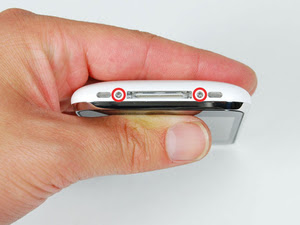
Remove the two Phillips #00 screws from the dock-connector end of the iPhone.


tep 2

There is a fragile rubber gasket between the silver front bezel and black display assembly. Keep your tool as close to the silver front bezel as possible to prevent damaging the gasket.

We recommend a metal spudger for this task, but an X-acto knife should also work, just be careful not to slip.

Insert a metal spudger into the seam between the silver front bezel and the black display assembly on the edge closest to the home button. Gently pry the display assembly up from its bezel.

Step 3

If necessary, insert the metal spudger in the same manner on the side of the iPhone and continue to pry up gently. Stop using the metal spudger once the display assembly is up enough that you can lift it up with your fingers.

Step 4

The display assembly is still connected to the iPhone by several cables, so don't try to remove it entirely just yet.

Rotate the display assembly up until it is at an angle of approximately 45 degrees.
 

Step 5

Continue to hold the display assembly with one hand, and use your other hand and a spudger to disconnect the black ribbon cable labeled "1."

Step 7

Use a spudger to flip up the white plastic tab holding the remaining ribbon cable in place. The white tab will rotate up 90 degrees, releasing the ribbon cable.

Slide the black ribbon cable out of its connector, and remove the display assembly from the iPhone.


To Be Continue....

Monday, 8 August 2011

Iphone Appstore Applications

QURAN PRO


DOWNLOAD

YOUTUBE REVIEW
>>>>>>>>>>>>>>>>
<<<<<<<<<<<<<<<>


ASPHALT4


DOWNLOAD

YOUTUBE REVIEW

>>>>>>>>>>>>>>>>
<<<<<<<<<<<<<<<<

AnimalFarm


DOWNLAOD

>>>>>>>>>>>>>>>>>
<<<<<<<<<<<<<<<<<

AquaForest


DOWNLOAD
YOUTUBE REVIEW
>>>>>>>>>>>>>>>>>>>>>
<<<<<<<<<<<<<<<<<<<<<

BeatMaker


DOWNLOAD
YOUTUBE REVIEW

>>>>>>>>>>>>>>>>>>>>
><<<<<<<<<<<<<<<<<<<

Bowling


DOWNLOAD
YOUTUBE REVIEW

>>>>>>>>>>>>>>>>>>>>
<<<<<<<<<<<<<<<<<<<<

Bubble Bash


DOWNLOAD
YOUTUBE REVIEW

>>>>>>>>>>>>>>>>>>>
<<<<<<<<<<<<<<<<<<<

Chopper


DOWNLOAD
YOUTUBE REVIEW

>>>>>>>>>>>>>>>>>
<<<<<<<<<<<<<<<<<

Chronometer


DOWNLOAD

IPhone All Firmwares

iPhone 4 Firmware (GSM)


iPhone 3G S Firmware

iPhone 3G Firmware

iPhone 2G Firmware


iPad 2 Firmware


iPad

iPod Touch 4G

iPod Touch 3G


iPod Touch 2G


iPad 2 (Wifi)


iPad 2 (CDMA)


iTunes


BlackRa1n


PurpleRa1n


RedSn0w


QuickPwn


PwnageTool


Sn0wBreeze


GreenPois0n


TinyUmbrella


LimeRa1n


Spirit

WinPwn


ZiPhone


BootLoaders


I-Phone Custom Firmwares


IPhone 3G (s)

3G (s) 3.1.2


3.1.2-1GB Root Partition, UNACTIVATED, Cydia, Stock Boot Logos

3.1.2-1GB Root Partition, ACTIVATED, Cydia, Stock Boot Logos

IPhone 3G

3G 3.1.2


3.1.2-1GB Root Partition, UNACTIVATED, Cydia, Stock Boot Logos

3.1.2-1GB Root Partition, ACTIVATED, Cydia, Stock Boot Logos

3G 3.1 Activated:
3G 3.1 Unactivated:
3G 3.1 1GB Activated:
3G 3.1 1GB Unactivated:
IPhone 2G

2G 3.1.2


3.1.2-1GB Root Partition, UNACTIVATED, Cydia, Stock Boot Logos

3.1.2-1GB Root Partition, ACTIVATED, Cydia, Stock Boot Logos

2G 3.1 Activated Unlocked:
2G 3.1 Unactivated Unlocked:
IPod Touch (2G)

3.1.2-1GB Root Partition, Cydia, Stock Boot Logos

IPod Touch (1G)

3.1.2-1GB Root Partition, Cydia, Stock Boot Logos

ITouch 1G (Default Partition Size)
  • iPhone Custom Firmware 3.1.3


RAPIDSHARE
iPhone2_1_3.1.3_7E18_Custom_Restore_Activated.zip. 001
iPhone2_1_3.1.3_7E18_Custom_Restore_Activated.zip. 002
iPhone2_1_3.1.3_7E18_Custom_Restore_Activated.zip. 003
iPhone2_1_3.1.3_7E18_Custom_Restore_Activated.zip. 004

NOT Activated (for Official Carrier Users)
RAPIDSHARE
iPhone2_1_3.1.3_7E18_Custom_Restore_NOT_Activated. zip.001
iPhone2_1_3.1.3_7E18_Custom_Restore_NOT_Activated. zip.002
iPhone2_1_3.1.3_7E18_Custom_Restore_NOT_Activated. zip.003
iPhone2_1_3.1.3_7E18_Custom_Restore_NOT_Activated. zip.004

iPhone 3G Custom Firmware 3.1.3 IPSW

Activated (for UnOfficial Carrier Users)
RAPIDSHARE
iPhone1_2_3.1.3_7E18_Custom_Restore_Activated.zip. 001
iPhone1_2_3.1.3_7E18_Custom_Restore_Activated.zip. 002
iPhone1_2_3.1.3_7E18_Custom_Restore_Activated.zip. 003

NOT Activated (for Official Carrier Users)
RAPIDSHARE
iPhone1_2_3.1.3_7E18_Custom_Restore_NOT_Activated. zip.001
iPhone1_2_3.1.3_7E18_Custom_Restore_NOT_Activated. zip.002
iPhone1_2_3.1.3_7E18_Custom_Restore_NOT_Activated. zip.003
iPhone 2G Custom Firmware 3.1.3 IPSW